



Overview
VisualLightBox is a free application that helps you easily generate online photo albums, website albums with a nice Lightbox-style overlay effect, in a few clicks without writing a single line of code.
Just move your photos into VisualLightBox program window, press "Publish" and your own web photo gallery with beautiful LightBox effects will open in the browser instantly!
No javascript, html coding, css, image editing, just a click to get your web photo gallery ready.
Want more?
- jQuery plugin or Prototype extension
- Floating and smooth cross-fade transition
- Slideshow with autostart option
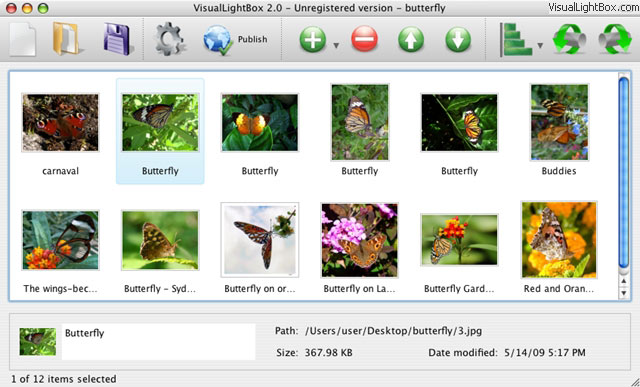
- Windows & MAC version
- XHTML compliant
- Zoom effect with overlay shadow
- Rounded corners of overlay window
- Large images fit to browser window
- A lot of nice gallery themes
- Image rotating and hi-quality image scaling with anti-aliasing
- Automatic thumbnail creation
- Adding caption
- Built-in FTP
Example
Lightbox gallery sample
The following image set is generated by VisualLightbox. Click any picture to run Lightbox gallery.
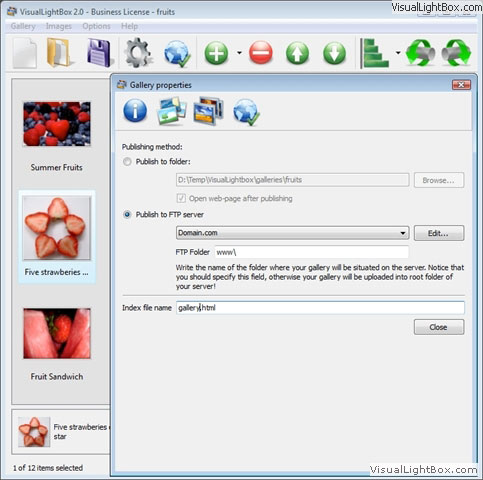
The example above is an in-page usage demo of Lightbox script. The lightbox gallery created with VisualLightbox application is placed inside the page layout. You can also check the full-page demo gallery. This example takes whole browser area to show the website gallery.adding photo gallery to web siteThe photo gallery above is an in-page usage demo of Lightbox. The lightbox gallery created with VisualLightbox tool is placed inside the website page. You can also check the full-page demo website gallery. This example takes whole browser area to show the lightbox gallery.
How to Use
Adding folders with images or images to web photo gallery.
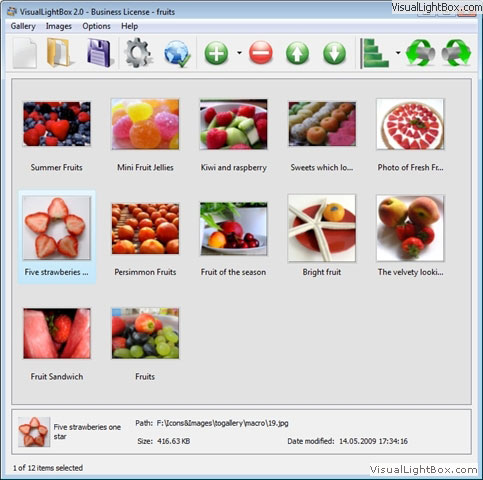
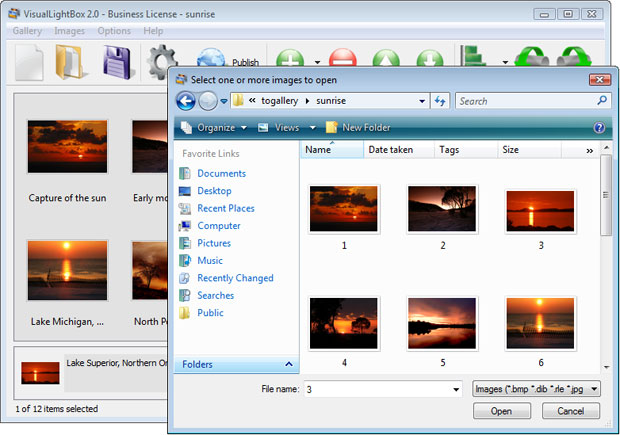
From the Images menu, select Add images...  Browse to the location of the folder you'd like to add and select the images. VisualLightBox will now include that folder. Or you can move the images (folder) to the VisualLightBox software window. The image is copied to your pictures folder and automatically added to your css web site album.
If you have included the images that you do not wish to be in the website gallery, you can easily remove them. Select all images that you wish to remove from photo gallery, and select Delete images. from the Images menu. You can pick and choose pictures by holding the CTRL while clicking the pictures you like.
You can also use your Vista Photo Gallery projects (. Vgal) in VisualLightBox.
Adding caption.
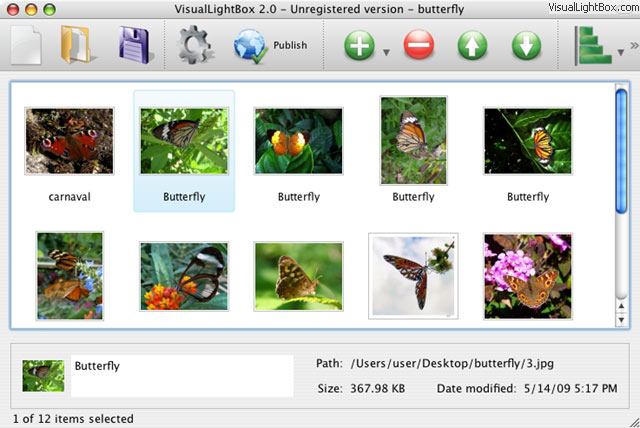
When you select an image you'll see the various information about it, such as:
- Path, Size - for each image, you will see the file name, full folder path; file size and date of last change.
- Caption - you can enter any comment or text about the image (up to 512 symbols) in the website photo gallery.

Editing capabilities.
In this web photo gallery software you can easily rotate your pictures using "Rotate Left" and "Rotate Right" buttons.

Right click on the picture and select "Edit images." item to open the selected picture in your default graph tool. You can adjust the color of pictures, as well as fix red-eye and crop out unwanted parts of an image.
Gallery properties.
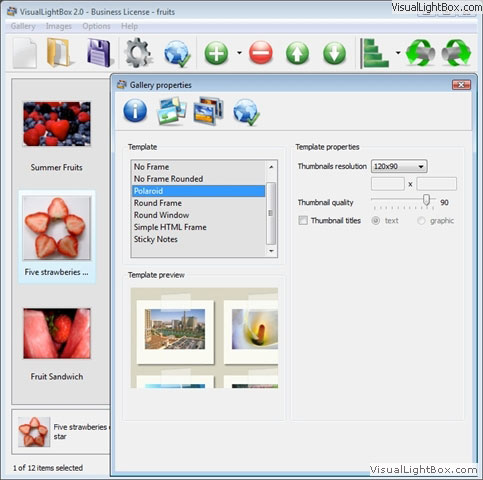
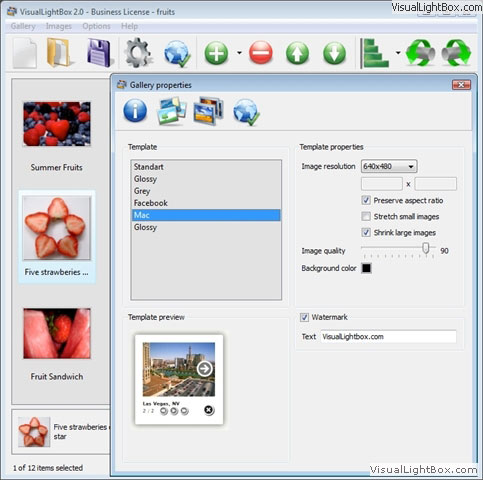
Change the name of your website image album, the size and quality of your pictures with Website Photo Gallery. From the Gallery menu, select Properties or use "Edit Gallery Properties" button on the toolbar.
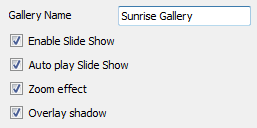
On the first tab of the Gallery Properties window you can change the name of your website album and enable/disable the following properties: Slide Show, Auto play Slide Show, Zoom effect, Overlay Shadow.
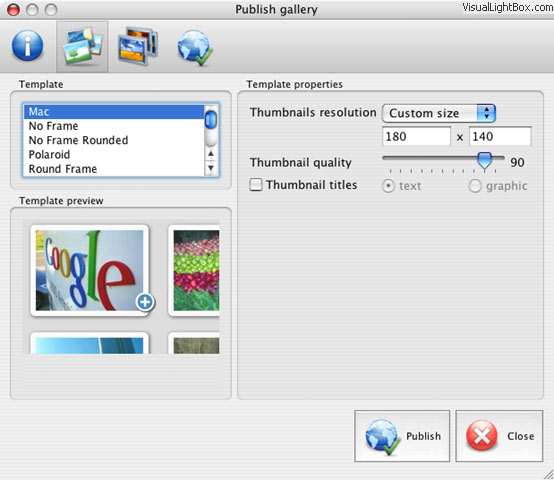
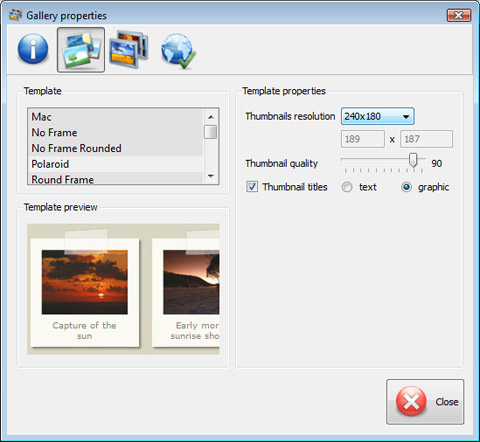
On the second tab of the Gallery Properties window you can select the thumbnail you want to use, set the Thumbnails Resolution, Thumbnails Quality, Thumbnails Titles.
On the third tab of the Gallery Properties window you can select the templates, the size and quality of your pictures, set background color and change the watermark.
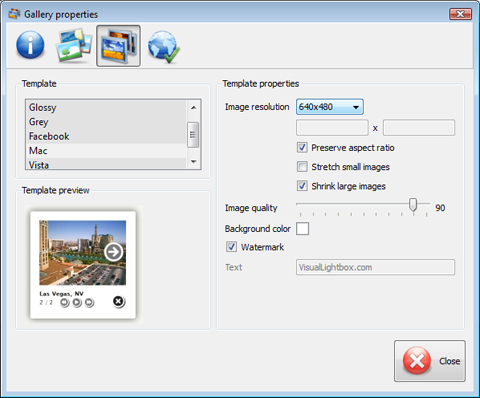
You can set up the various sizes for generated images.

Control the quality of output JPEG format image by defining output "Image quality" and "Thumbnail quality" parameters (0%�100%).

Save your photo gallery as project file.
When you exit VisualLightBox wizard, you'll be asked if you want to save your project. The project consists of the pictures you choose to put on your website image album and all your settings. It's a good idea to save the project, because that will allow you to change the project in case you decide to do something different with future galleries. So click Yes, then enter a name for your project. To select the location of your project, just click the Browse folders button and choose a different location. Then click Save.
best web site design gallery Lightbox JsDownload VisualLightbox
 Download Free Edition Download Free Edition for Windows |  Download Free Edition Download Free Editionfor MAC |
VisualLightBox is free for non - commercial use.
A small fee is required for business use. VisualLightBox Business Edition additionally provides an option to remove the VisualLightBox. Com credit bar as well as a feature to put your own logo to images. After you finish the payment via the secure order form, you will receive a license key instantly by email that turns the VisualLightBox Free Edition into a Business one. You can select the most appropriate payment method: check, bank transfer, PayPal, credit card etc. Also you can get Business Edition for free if you help with translating Visual LightBox into your native language, please contact us at  for more info.
|
| |||||||||||||||||||||||||||||||
Support
For feature requests, troubleshooting, general help contact Customer Support at  Make sure to include details on your VisualLightbox version, a link (or relevant code), operating system and a browser.free gallery web page template
Feedback
* I find Visual LightBox (and lightbox2) a great tool and was about to proceed in its purchase.
* I just tried the application, It is wonderful idea. Like you said in the website "few clicks without writing a single line of code" because most of the people is not web designers".
* I LOVE your free Lightbox2 software tool and will purchase the business version shortly. I have seen the Lightbox JS effect used with video tutorials and I was hoping you have a version for video that I can purchase.
Video LightBox: http://videolightbox.com * First of all, your product is fantasitc. I looked at the others and your code generator app was insanely easy to use.
* I just tried the application, It is wonderful idea. Like you said in the website "few clicks without writing a single line of code" because most of the people is not web designers".
FAQ
Q:I would like to have a few galleries in one website and even on one page.
A:To create several galleries on your page you should change following parameter in A tag for different galleries: <!-- Start VisualLightBox.com BODY section --> <!-- Start VisualLightBox.com BODY section -->
rel="lightbox_vlb"
For example, for the first gallery you should set rel="lightbox_vlb":
<div id="vlightbox">
<a rel="lightbox_vlb" href="data/images/dscn6831.jpg" title="dscn6831" >
<img src="data/thumbnails/dscn6831.png" ><span></span></a>
<a rel="lightbox_vlb" href="data/images/dscn6823.jpg" title="dscn6823">
<img src="data/thumbnails/dscn6823.png"><span></span></a>
<a id="vlb" href="http://visuallightbox.com">Photo Gallery For Web by VisualLightBox.com v2.0</a>
</div>
<!-- End VisualLightBox.com BODY section -->
<div id="vlightbox">
<a rel="lightbox_vlb1" href="data/images/img_0501.jpg" title="img_0501">
<img src="data/thumbnails/img_0501.png"><span></span></a>
<a rel="lightbox_vlb1" href="data/images/img_0481.jpg" title="img_0481">
<img src="data/thumbnails/img_0481.png"><span></span></a>
<a id="vlb" href="http://visuallightbox.com">Photo Gallery For Web by VisualLightBox.com v2.0</a>
</div>
<!-- End VisualLightBox.com BODY section -->